Copy or compare workflows between forms
Copy a workflow from one form to other forms, or sync only the differences.
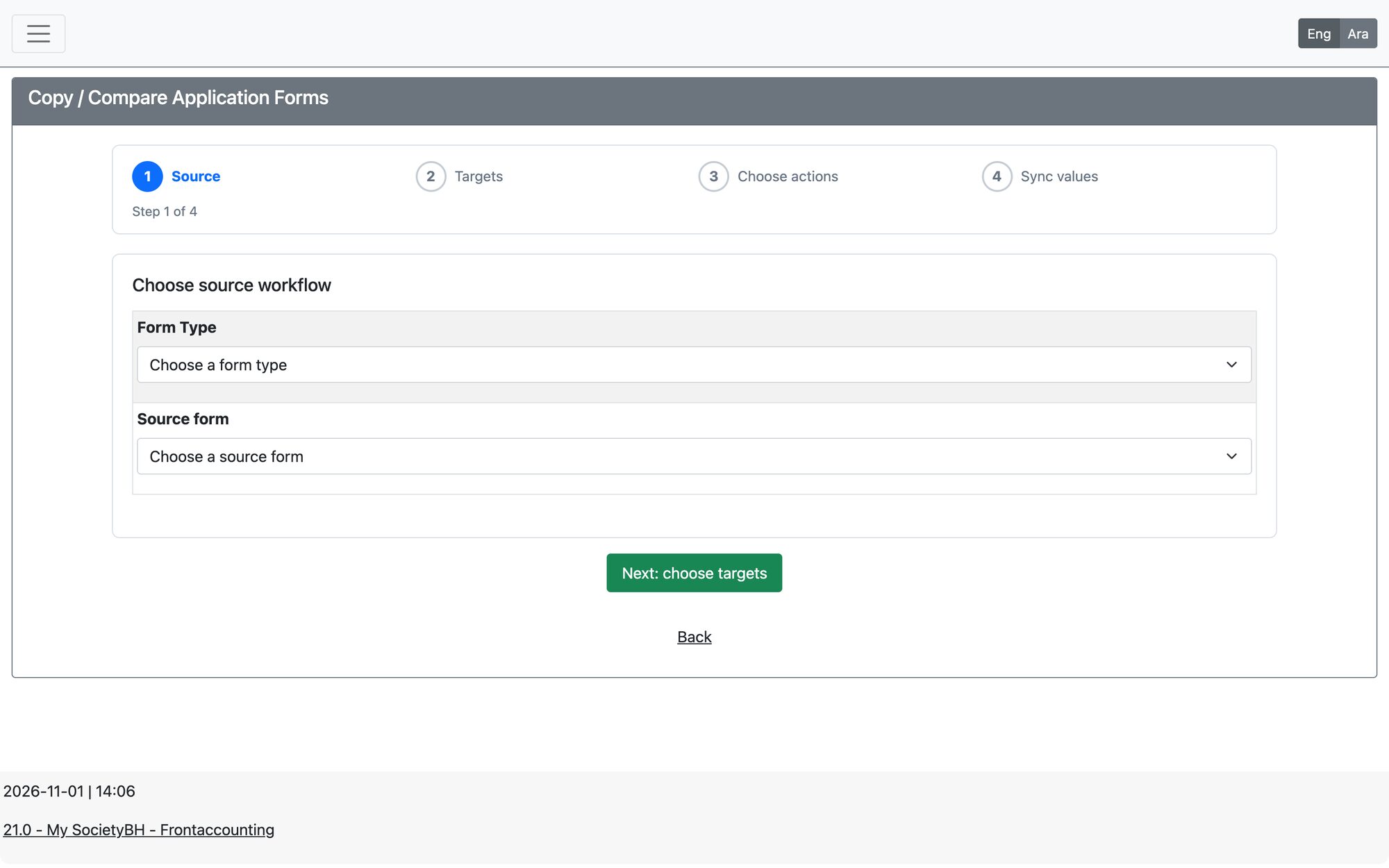
Open Workflow → Workflow Configuration → Copy / Compare Application Forms to reuse a workflow you already built instead of entering it again for each form. The screen is a four-step wizard (Source, Targets, Choose actions, Sync values).
Steps
- Source: choose the Form Type and the Source form. The source must have an active workflow. Press Next: choose targets.
- Targets: choose one or more Target forms and press Next: review.
- Choose actions: for each target form pick an action (see below). For a form set to Replace you can tick Copy messages to carry its workflow messages onto the new steps, and you can override Max Aid per step for that form only.
- Sync values: shown only if you chose Sync for a form. Review the differences and apply them, then continue to the final review.
- Press Apply Workflow Copy. A result table shows OK or FAILED for every form.
The actions
| Action | What it does |
|---|---|
| Create | Offered when the target form has no workflow yet: creates a new one copied from the source. |
| Replace | Offered when the target already has a workflow: creates a new workflow from the source and deactivates (does not delete) the old one. |
| Sync | Offered only when both forms have exactly one active workflow and their structure differs: applies just the differences instead of replacing everything. |
| Skip | Leaves the form unchanged. |
Applications already in progress stay on their current steps; only new applications use the copied workflow. If a form has applications in progress, the system asks you to confirm that you understand this before applying. A failed form is rolled back and left unchanged.
Updated: