Manage trust relations with other societies
Request a connection, approve incoming requests, set what the other society may see, and revoke access.
Open Trusted Societies Network → Trust Management → Manage Trust Relations. The page has four parts.
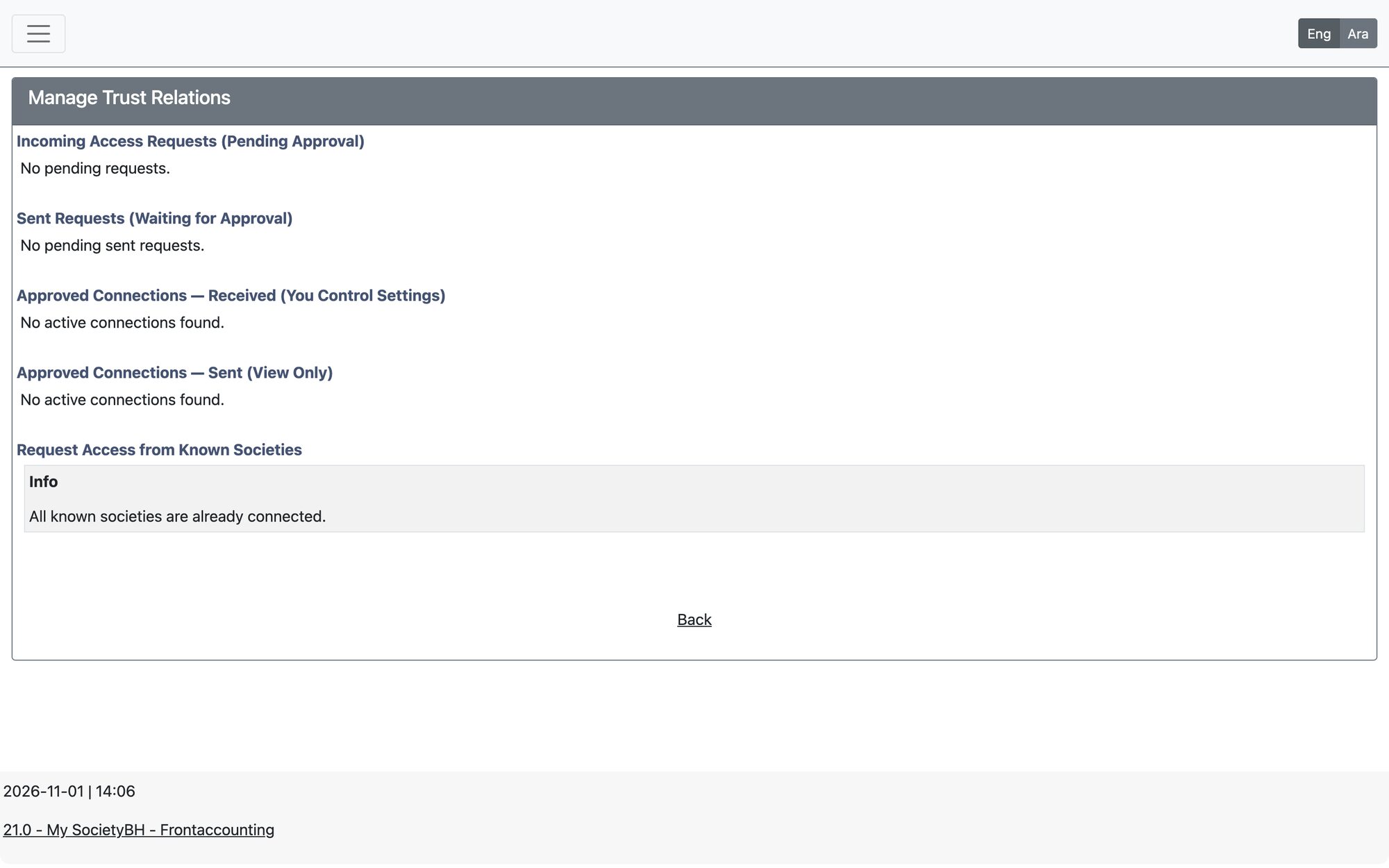
| Section | What it is for |
|---|---|
| Request Access from Known Societies | Choose a society from the list and press Request Access to ask it for a connection. Societies you are already connected to do not appear; if all are connected the page says so. |
| Sent Requests (Waiting for Approval) | Your requests that the other society has not answered yet. |
| Incoming Access Requests (Pending Approval) | Requests from other societies. Press Approve or Reject. |
| Approved Connections — Received / Sent | Received are societies that access you — you control their permissions. Sent are societies you access — view only, because they control the settings. |
Approve a request and set permissions
- Press Approve on the incoming request. The connection is established and the other society is notified.
- The connection opens in edit mode so you can set permissions straight away (“Please configure access permissions for this peer”).
- Under My Settings set what they may do on your data, then press Update Connection. The other society is notified of the new settings.
Permissions you control
- Access Level — Match Only (no data, the safest), Totals Only, Totals + Counts, or Full Breakdown (detailed).
- Max History Days — how far back they may look (0 means forever).
- Rate Limit / Min — how many requests per minute they may send.
- Status — Active or Blocked.
Revoke a connection
Use Manage Connection / Access Control on the connection, then delete it. Deleting a received connection stops them accessing you; deleting a sent connection stops you accessing them.
Only the society that is accessed decides what is exposed. Their settings on your connections are shown read-only.
Updated: