Record a donation and manage a donor
Add a donor, record donations, manage subscriptions and follow up with the donor.
Open Donation → Donations → Donations. The screen has four tabs: Donor Info, Donation list (the donor’s subscriptions), Donations History and Follow up. The last three are enabled once the donor exists.
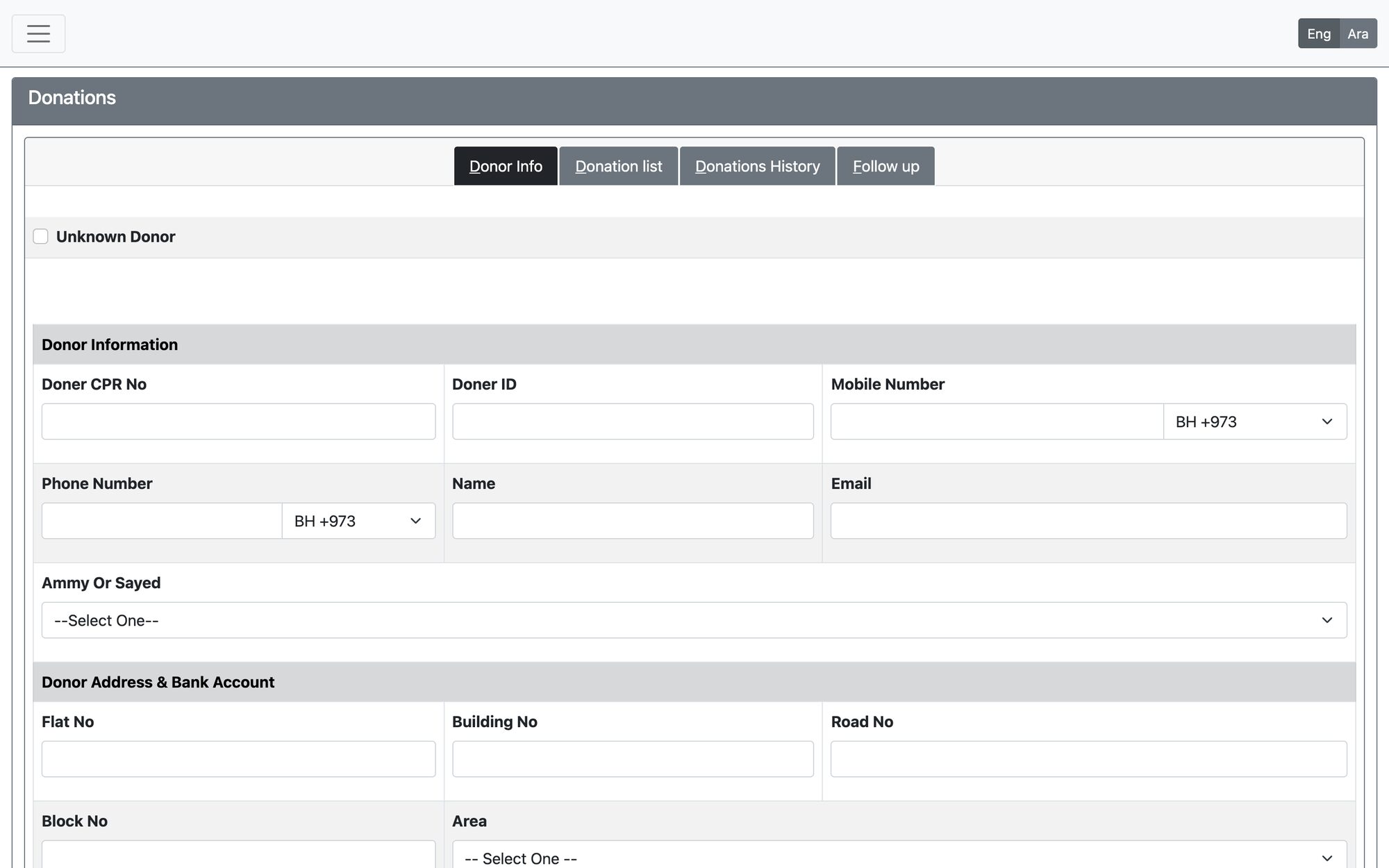
Record a donation
- Identify the donor: enter the Donor CPR No or Donor ID, or the Mobile Number. If the donor is found the data is filled in; otherwise the system shows “Donor is not registered yet. A new donor will be added.” Tick Unknown Donor for an anonymous donation.
- Complete the donor details if needed: name, email, phone, address, IBAN and Donor Bank, then press Add (new donor) or Update. The system tells you the new Donor ID.
- Under Donations, press Donate next to the Donation type, or add lines with Add Item: type, amount and, if the donor has a subscription of that type, tick Pay Subscription and pick it.
- Choose the Payment Method, the Bank Account, the Transaction Date and, for cheques, the Cheque Number. Add a Memo; tick Skip communication Message if no message should be sent.
- Press Donate to save. A receipt can be printed from the donor’s history.
What the system checks
- The CPR must have the number of digits set for the society (9). The mobile number must have the length set in the system settings and match the validation pattern if one is set.
- The IBAN must be valid.
- You must give at least a CPR, a mobile number or an IBAN to add a donor.
- The donation date must be valid and inside the fiscal year.
- At least one active donation line is required.
The other tabs
| Tab | Use |
|---|---|
| Donation list | The donor’s subscriptions (recurring pledges): Donation type, Donation title, Default amount, Start date, end date or Continuous Donation, Payment frequency (weekly, monthly, bi-annual, yearly), preferred method and society bank account, and whether the subscription is active. Types shown in red have an outstanding balance |
| Donations History | All donations of the donor with date, type, amount, payment method, whether it belongs to a subscription, GL transaction and receipt. A donation can be linked to a subscription later |
| Follow up | Assign the donor to a user for follow up and add dated follow-up notes with Add note |
Updated: