Set up the workflow of an application form
Define the steps, payment and cancel steps, and the decisions each role can take.
Open Workflow → Workflow Configuration → Forms Workflow. Every application type (form) has its own workflow: the steps an application passes through and who may move it from one step to the next.
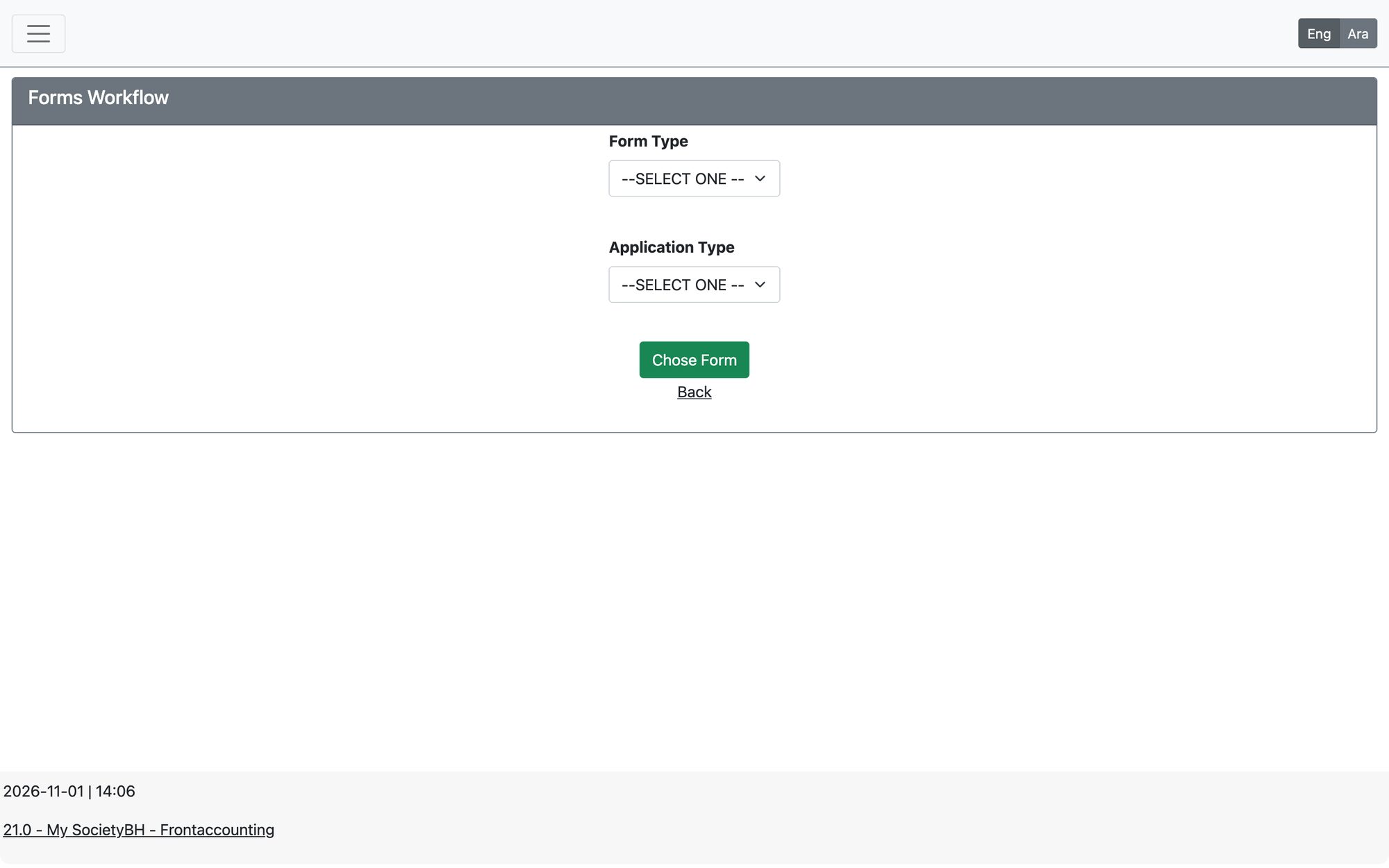
Choose the form
- Pick the Form Type, then the Application Type.
- Press Chose Form. The existing workflow (if any) is loaded and drawn as a diagram, and the three tabs appear below it.
Tab 1: Workflow Steps Info
Add the steps of the workflow. For each step choose:
| Field | Meaning |
|---|---|
| Workflow Step Name | Pick a name from the list. Names are managed in Workflow Settings (see the last article of this section). |
| Application Status In this Step | Active, In Progress or Not Active. This is the status the application takes while it sits in this step. |
| Max Aid Accepted | Optional ceiling for the aid amount in this step. Leave it empty for no ceiling. It cannot be higher than the maximum allowed by the form itself. |
Use Add, and the Edit / Delete buttons on each row. Press Next to continue.
The workflow must contain at least one step with the status Active and at least one with the status Not Active, otherwise the system will not let you continue.
Tab 2: Workflow initialize info
Choose three special steps from the steps you defined. All three are required:
- Starting Workflow Step: where every new application starts. It cannot be a Not Active step.
- Payment Workflow Step: the step at which approved applications wait for payment. Aid Payments selects the applications that are at this step.
- Cancel Workflow Step: the step an application moves to when it is cancelled or ended.
Tab 3: Workflow Decision
- Choose the step from the list at the top (“Step 1”). Its existing decisions are shown below.
- Choose the Decision (for example approve or reject), tick the Roles allowed to take it, and choose the Next Workflow Step for this decision.
- Press Add (or Update when editing a row).
- When all steps are done, press Finish & Save.
Rules the system checks
- A decision needs at least one role and a next step.
- A step cannot have the same decision twice.
- The starting, payment and cancel steps must all be chosen before moving to the decisions tab.
Updated: