Campaign results and WhatsApp templates
Follow how a campaign went, and see where each WhatsApp template stands with Meta.
Both screens are under Communication → Inquiries and Reports.
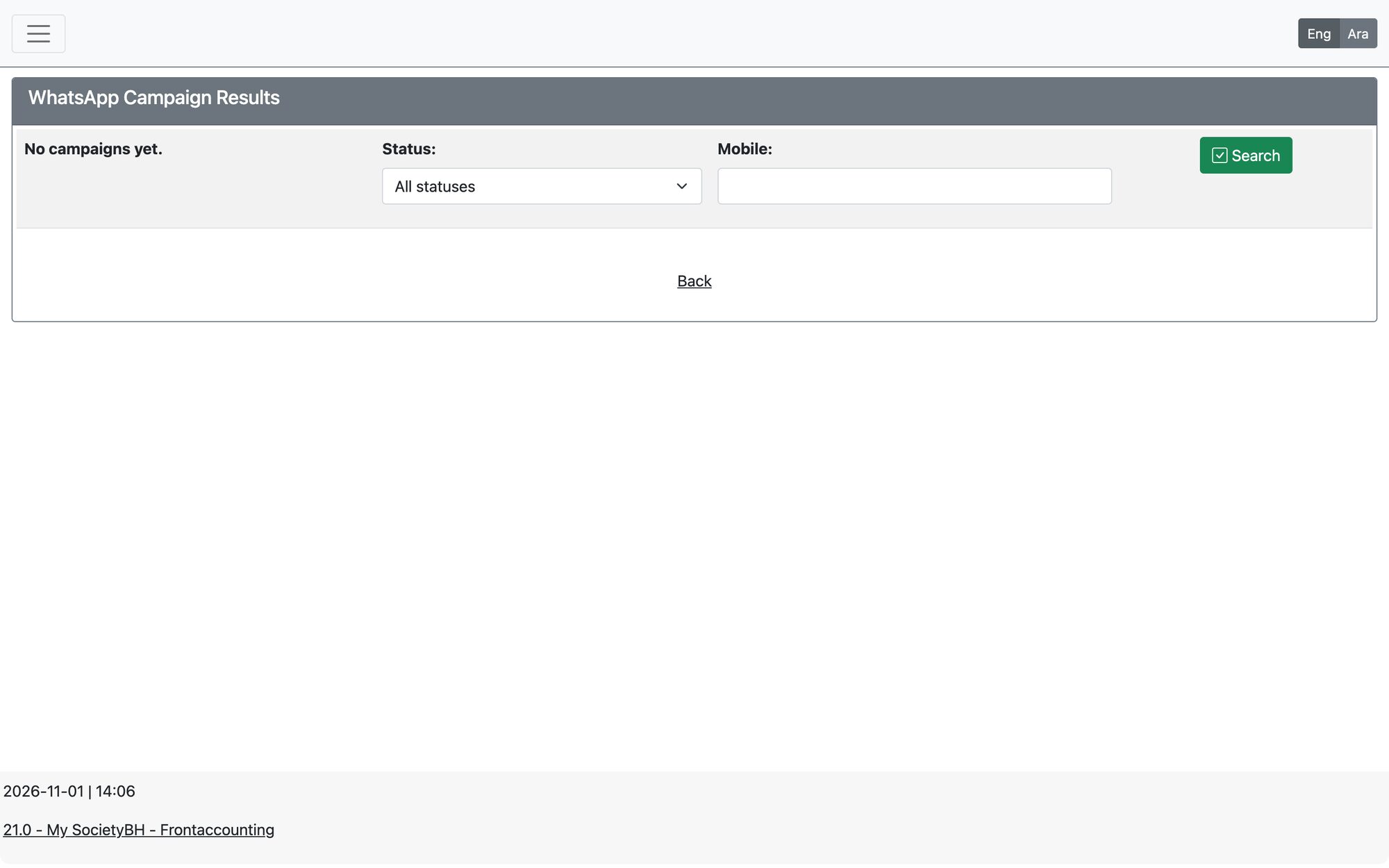
WhatsApp Campaign Results
Open Communication → Inquiries and Reports → WhatsApp Campaign Results, filter by status and open a campaign to see its progress and each recipient’s outcome.
- Recipient outcomes include: Prepared, Queued, Sending, Sent, Delivered, Read, Replied, Failed, Skipped and Opted out.
- Why recipients were not sent lists the reasons (unusable number, duplicate, unsubscribed, missing value, campaign cancelled).
- For messages that were handed to WhatsApp but never confirmed, check the WhatsApp message log first and then use Mark as sent, or Send again while the campaign is still running. Sending again delivers the message a second time.
WhatsApp Templates
Open Communication → Inquiries and Reports → WhatsApp Templates. Every WhatsApp message needs a template approved by Meta; this page shows each template, its state and the forms or donation types linked to it. Messages with identical text share one approved template.
- Submitting, checking and re-submitting happen automatically in the background (a sync runs daily). You only need to act on rows marked Rejected, Could not be sent or Paused.
- Available actions include Retry Meta approval, Recheck and resend if missing and Use a new Meta name. Deleting the old template at Meta affects every linked message, so the system asks for confirmation.
- If the template sync or the official WhatsApp service is switched off in the settings, nothing is sent for approval.
Updated: