Messages: what the system sends and to whom
Set up the SMS, email and WhatsApp messages sent when a decision is made, a payment is received or a date approaches.
Open Communication → Communication Configuration → Messages. Every automatic message starts from a trigger — the event that sends it. Choose a trigger first, then add or edit its messages.
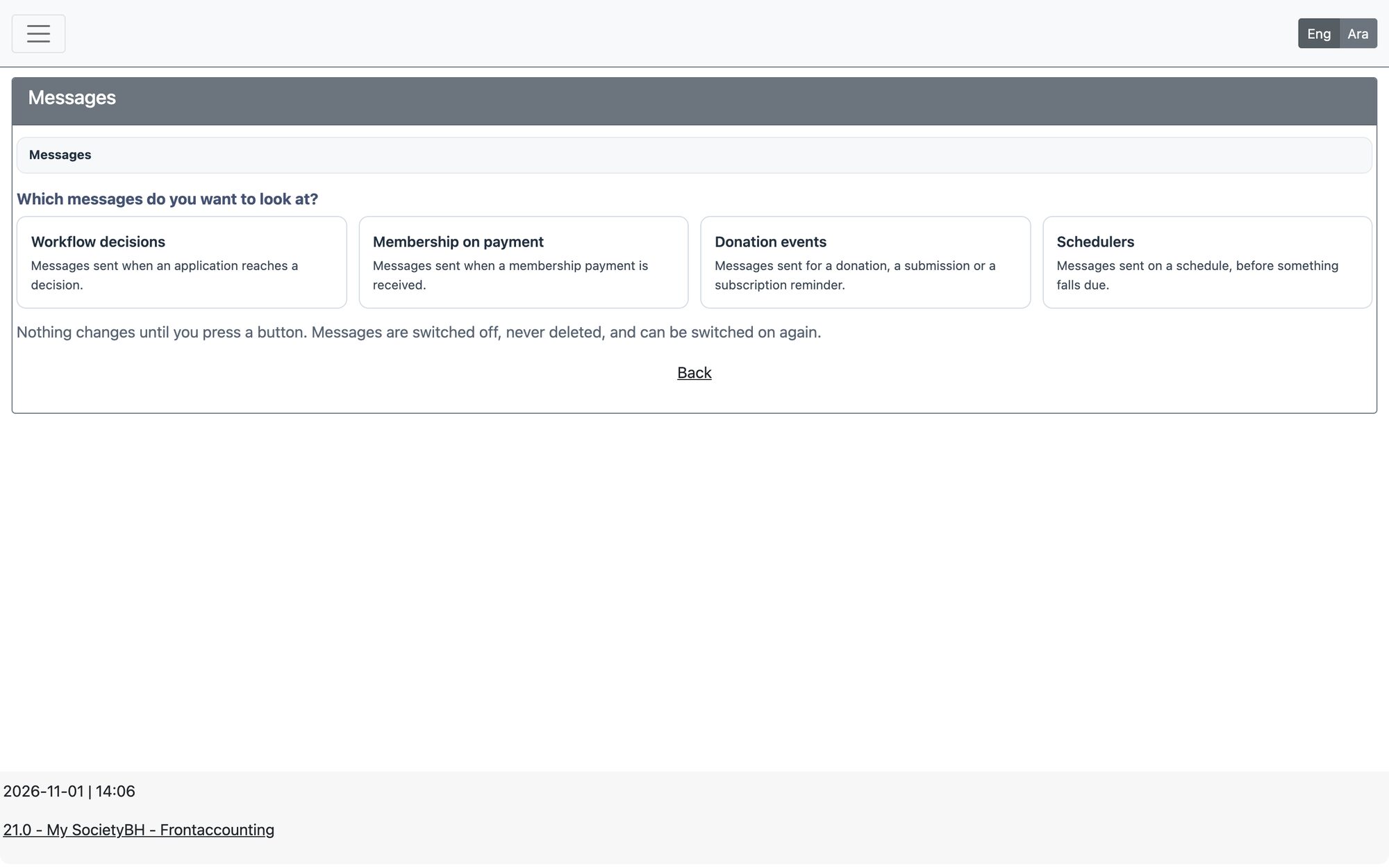
Message types (triggers)
| Trigger | When the message is sent |
|---|---|
| Workflow decisions | When an application (social, education, membership…) reaches a decision in its workflow. You pick the decision and see which forms carry a message. |
| Membership on payment | When a membership payment is received. |
| Donation events | When a donation is recorded or submitted, and donation subscription reminders. |
| Schedulers | On a schedule, before something falls due — for example a number of days before the due date, repeated every few days. |
Add or edit a message
- Choose the trigger (and the decision or scheduler), then press New message or Edit message.
- Under Send to choose the recipients. Depending on the choice you also pick security roles, specific users, or type email addresses / mobile numbers separated by “;”.
- Tick the channels: Send SMS message, Send Email and/or Send WhatsApp message. A ticked channel needs its text — email needs both a subject and a body. A message with no channel ticked is refused.
- Write the text and insert the available fields (for example the person’s name or application number) from the editor. The SMS box shows the remaining characters.
- For WhatsApp, choose the WhatsApp Template Language and WhatsApp Template Category (Utility or Marketing). Fundraising requests and promotions count as Marketing.
- Choose Which forms use this message? (or donation types) in the Scope section, then press Save message.
WhatsApp approval
A WhatsApp message is sent as a template that WhatsApp (Meta) must approve. After you save, the message shows its WhatsApp Official (Meta) status; sending waits until it is approved, and changing the text, language or category sends it for approval again. Meta may change the category you requested — the screen tells you when it does. Approval is handled automatically in the background.
Switching messages on and off
- Nothing on this screen deletes a message. Use Switch off, and Switch on to bring it back; Show switched-off messages lists the stopped ones.
- The screen warns about groups of identical copies across forms and lets you merge them into one shared message, and about forms that carry a decision but have no message yet.
- Changing which forms use a message is done in its Scope — one message can serve many forms.
WhatsApp message charges are set by Meta and billed by Meta to your society’s own Meta business account — not by MySociety.
Updated: