Verify education applications and process them in bulk
Review applications at your workflow step, decide, and apply one decision to many applications.
Verify one application
Open Education → Education Applications → Verify Education Applications.
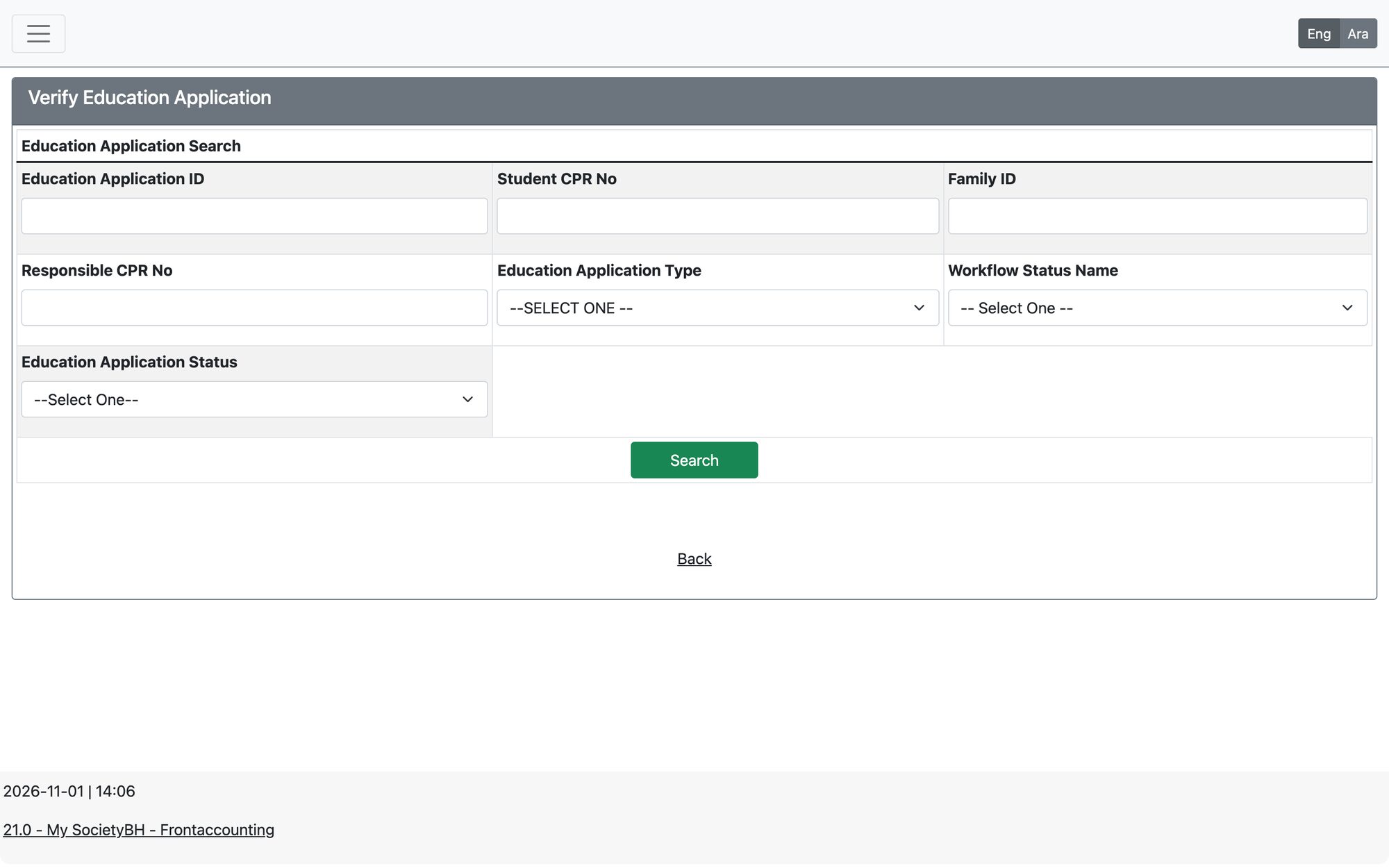
- Search by application ID, student CPR, family ID, responsible CPR, application type, workflow step name or status (Active, In-Progress, Not Active).
- Open the application from the results. The Student Summary shows the application type, number of dependents, family income, commitments, loans and the per-capita income.
- Review the tabs, including the student’s app history and the verifier action history link.
- Write the Verifier Comments, choose the Verifier Decision (only decisions your role may take at this step are listed), and press Finish & Save.
Aid amount and ceilings
- For Remedial, University and Training applications, the Educational Aid Amount is calculated from the active course: subjects and books (or wanted subjects, workshops and transportation) plus the other expenses.
- For the “Others” type, the verifier types the Amount.
- The amount cannot exceed the maximum aid amount of the application type, nor the maximum allowed for your role at the workflow step. The system refuses to save otherwise.
- A decision is required; the system does not save without one. Tick Skip communication Message to avoid sending the automatic message for this decision.
Bulk processing
Open Education → Education Applications → Bulk Education Application Processing to apply the same decision to many applications.
- Choose the Education Application Type and the Workflow Step Name, then Search.
- Tick the applications (the header box selects the current page only; use the “Select all” button for every match).
- Write the Verifier Comments and choose the Verifier Decision. The next workflow step and resulting status are shown.
- Press Update, review the summary, then Confirm Update.
The decision and comments apply to every selected application. If any application fails or has moved on, the whole batch is rolled back and nothing is updated. The screen is available only if your role has an active decision at that step.
Updated: