Void a transaction, backup and restore, dashboard and reminders
Cancel a wrong entry, protect your data with backups, and set up what each user sees on the dashboard.
Maintenance tools are under Setup → Maintenance; dashboard and reminders are under Setup → Miscellaneous.
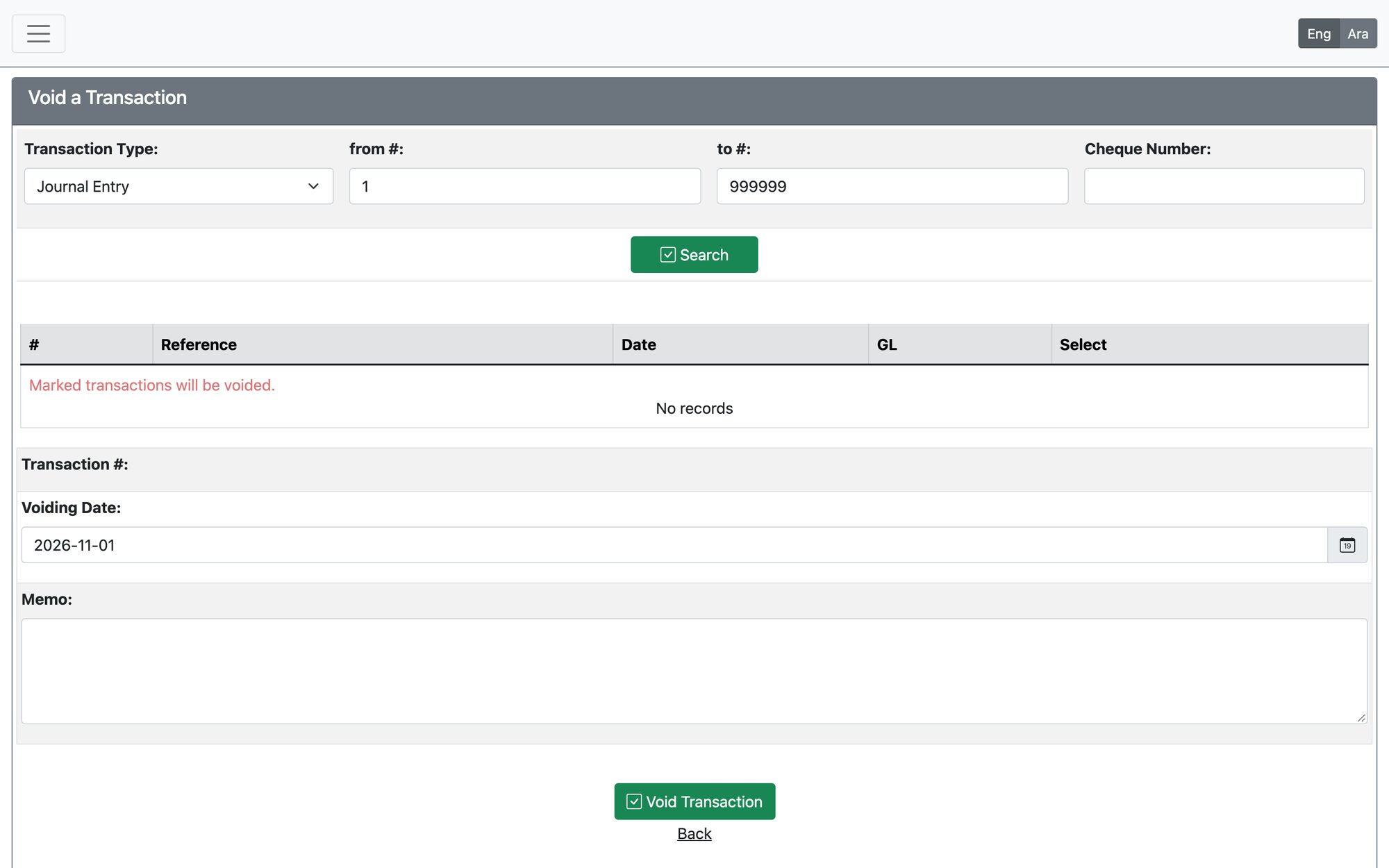
Void a Transaction
Open Setup → Maintenance → Void a Transaction.
- Choose the Transaction Type, enter the transaction number range, and press Search.
- Press Select on the transaction, enter the Voiding Date and a memo, and press Void Transaction.
- Review the transaction and the warning “Are you sure you want to void this transaction ? This action cannot be undone.”, then press Proceed.
- The voiding date must be inside an open fiscal year.
- A transaction that does not exist, was already voided, or is closed for editing cannot be voided.
- Voiding cannot be undone, so confirm the number and type before proceeding.
Backup and Restore
Open Setup → Maintenance → Backup and Restore.
- Create Backup — choose the compression, add comments and create the file; then Download Backup or View Backup it.
- Upload file — upload a previous *.sql backup. File names with forbidden characters are refused.
- Restore Backup — replaces the database with the selected backup. The system asks for confirmation first.
- Delete Backup — removes a stored backup file.
Restoring replaces current data with the backup, so create a fresh backup first and restore only when you are sure.
Dashboard Setup and Reminder Setup
- Dashboard Setup — choose which widgets appear on each application tab for the user: the application tab, the widget, its title, the column, the sequence, and whether it starts collapsed.
- Reminder Setup — add a reminder with a description, the role that sees it, the frequency (once, daily, weekly, monthly or yearly), and the next date. Reminders appear in the reminders widget on the dashboard.
Updated: