Import donations from Excel
Load many donations from a spreadsheet through a guided six-step wizard.
Open Donation → Donations → Donation import from excel (shown only when the online payment system is enabled). The wizard has six tabs that you complete in order.
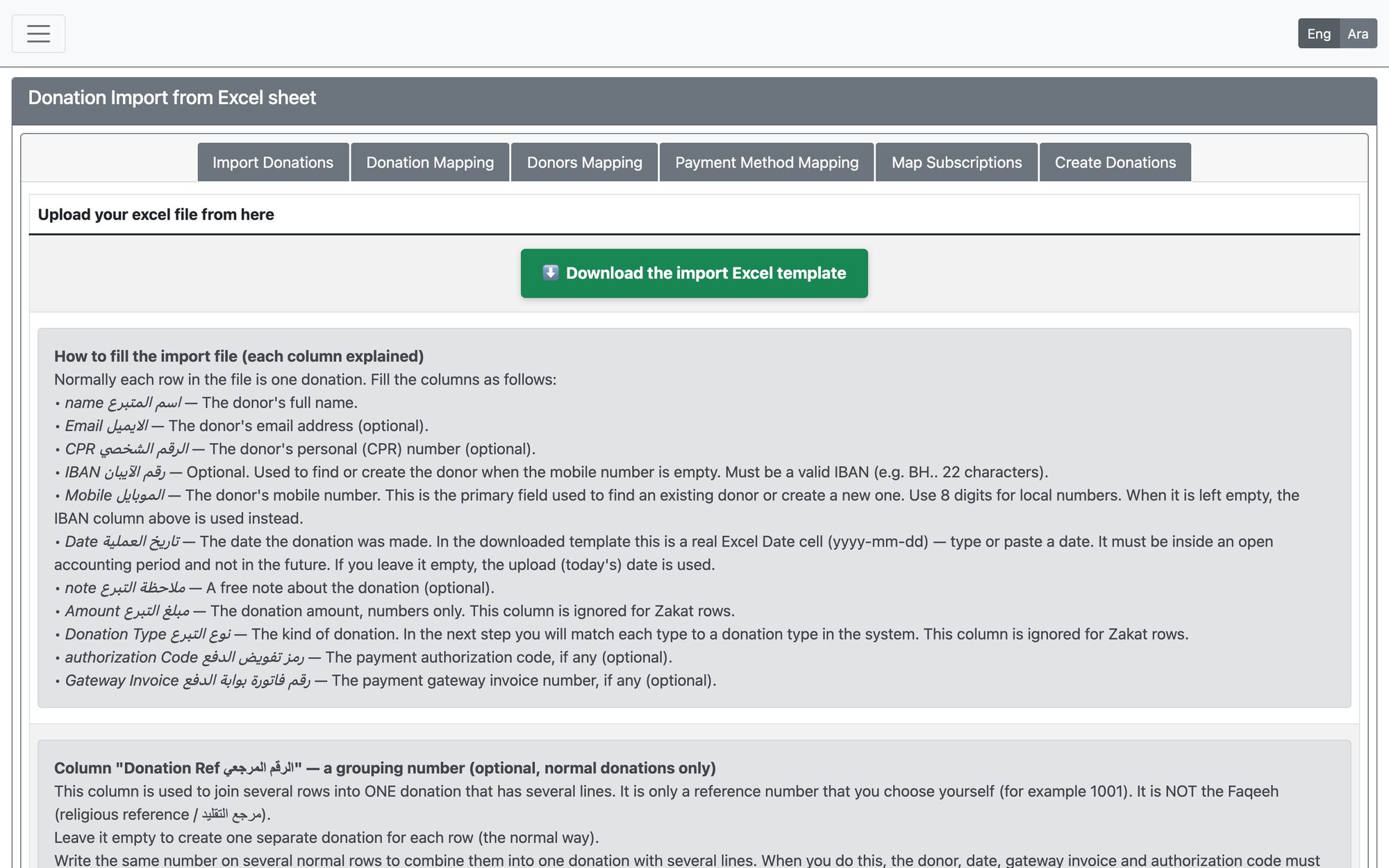
| Step | What you do |
|---|---|
| 1. Import Donations | Press “Download the import Excel template”, fill it (one row per donation; donor name, CPR, IBAN, mobile, date, note, amount, donation type, and optional gateway invoice, authorization code and a grouping reference), then choose the file and press Import excel file. Press Continue when the summary appears |
| 2. Donation Mapping | Match each donation type found in the file to a donation type in the system, then press Map Donations |
| 3. Donors Mapping | See how many donors are new, existing or unknown, then press Map Donors to create or update them |
| 4. Payment Method Mapping | Choose the payment method, bank account and, if relevant, the gateway used for the whole file |
| 5. Map Subscriptions | Optionally link the rows to existing donor subscriptions, or choose to skip |
| 6. Create Donations | Check that all validations show Yes, choose whether to skip communication messages for the batch, and press Create Donations |
Good to know
- The whole file is rejected, with the problem row number, if a date is invalid or falls in a closed period or the future, an amount is empty or wrong, a donation type is empty, or a mobile number or IBAN is malformed.
- Rows that share the same grouping reference become one donation with several lines.
- Zakat rows can be included by marking them in the Zakat columns of the template.
- The import only creates the donations. Posting them to the general ledger is done later from the Donation Search Engine.
Updated: